What’s new in Pie Menu 2
More room for your actions, more control over how your menus look, and a way to share the setups you love.
Organize with submenus
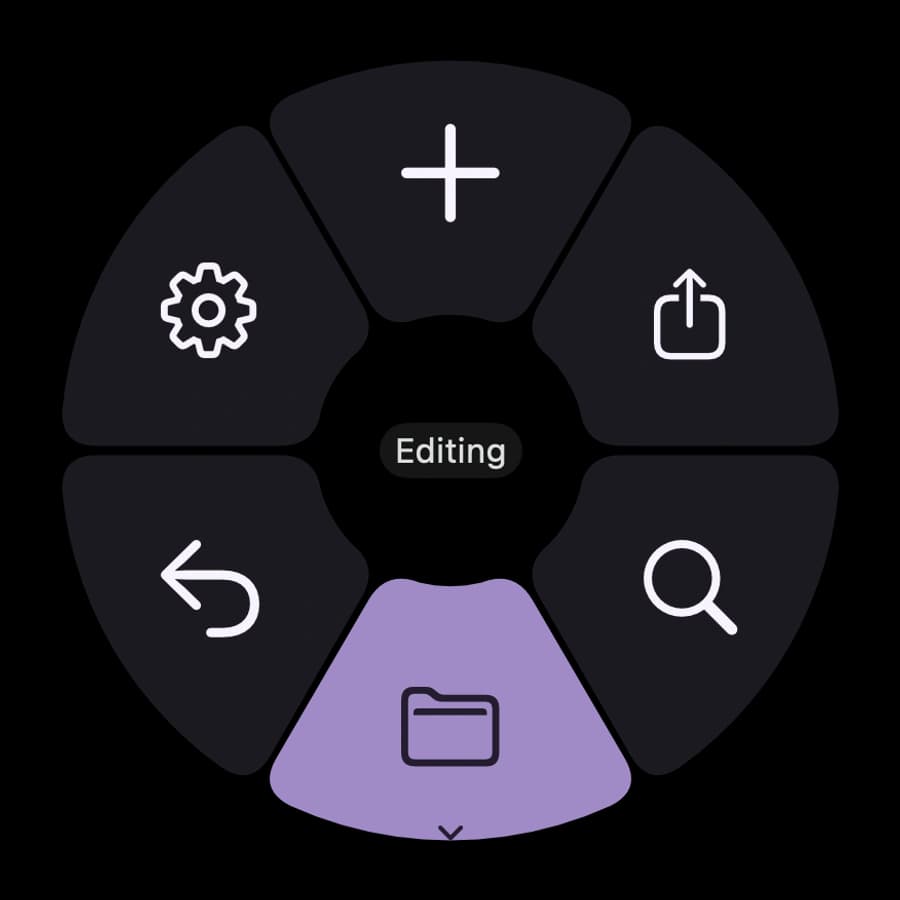
Select a submenu in your pie menu to open a new pie menu with its own actions. In the shortcut editor, choose the submenu action type, then add its child actions.
Your shortcuts, your icons
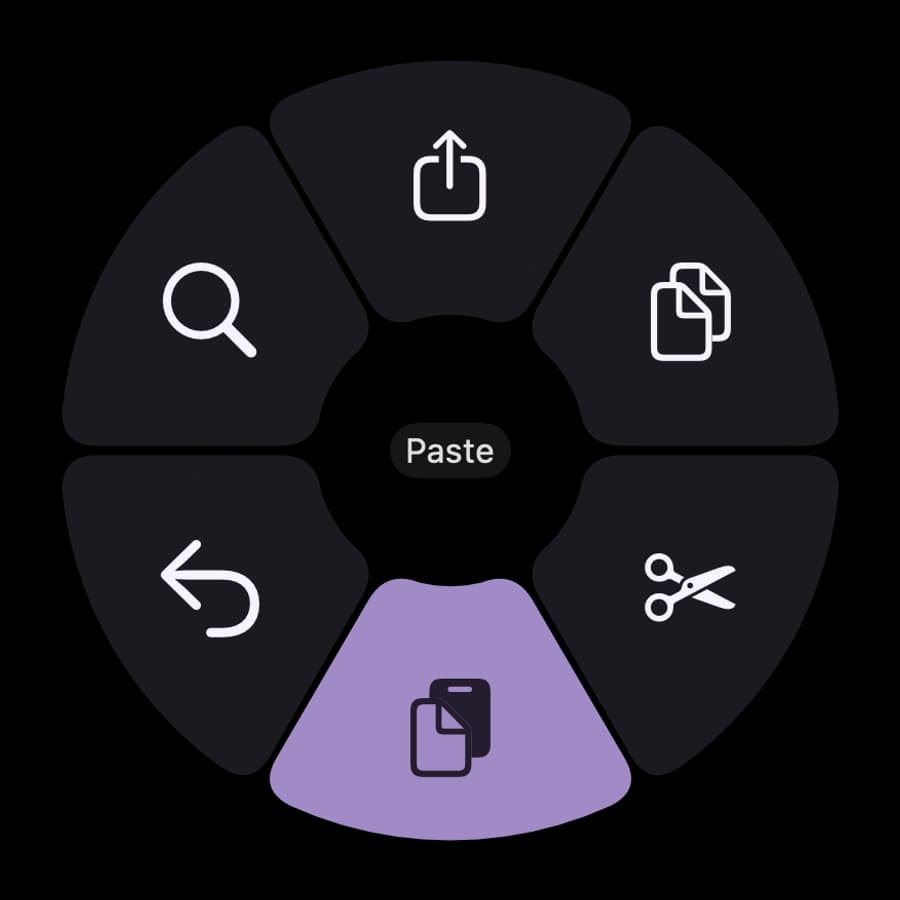
Choose from Apple’s SF Symbols, or use your own images and SVGs to make each action easy to recognize.


Make it yours
Choose a theme in Settings → Appearance, create your own, and add custom icons to your shortcuts. Browse community themes for a starting point.
Share a setup
Publish an app’s menu or a theme, send its link, and let someone else import it. You can update or unshare your published setup from the app. Explore community menus or read the sharing guide.
Move your settings between Macs
Use Export in Settings → General to save menus, icons, themes, and preferences. Use Import on your other Mac to bring them over. Export also gives you a backup before making larger changes.
Upgrade from V1
Update through the same store you used to install Pie Menu: the App Store or Setapp. V2 requires macOS 13 or later.
Your existing lifetime purchase or active subscription includes V2. You do not need to buy it again. If the App Store version does not recognize your purchase, choose Restore purchases in Settings → General using the same Apple Account.
Keep your existing installation and its data when updating. If something is missing, contact help@pie-menu.com before resetting or reinstalling.
If shortcuts stop working after the update, check Accessibility permissions.
